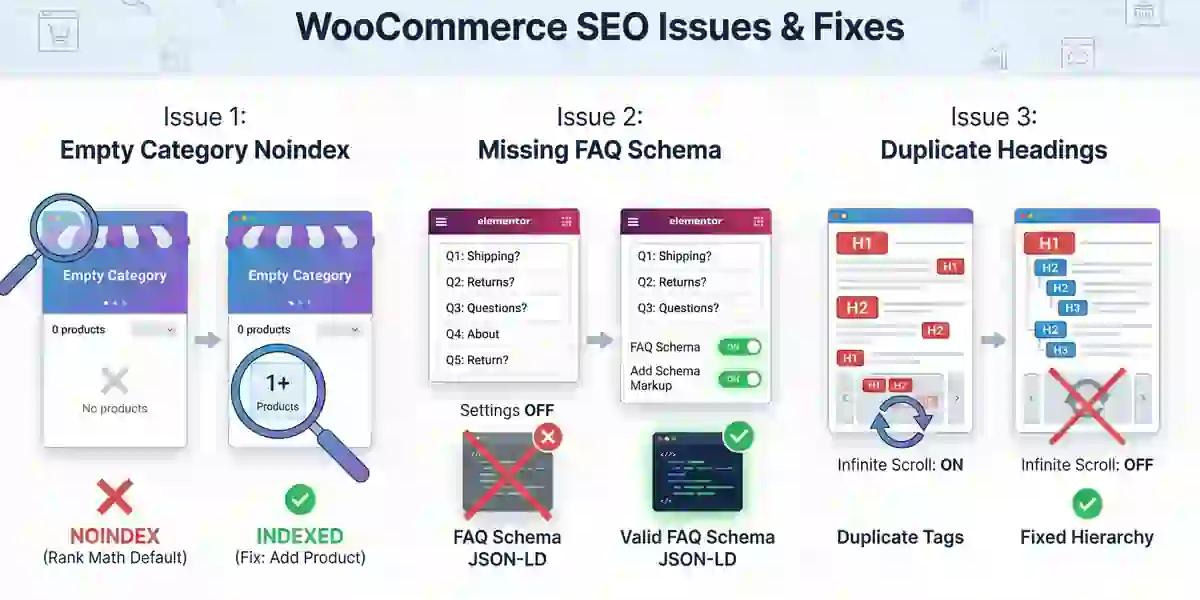
If you have ever spent hours staring at an SEO issue that just refuses to go away, you are not alone. Working on WooCommerce websites comes with its own set of technical SEO quirks that are not always obvious at first glance. In this post, I am sharing three real issues I encountered while auditing a WooCommerce site, what caused them and how I resolved each one.
Issue 1: Category Pages Not Being Indexed
What Happened
During a routine SEO audit, I noticed that several category pages were not being indexed by Google. I attempted to fix it through the usual channels, but the noindex status kept persisting no matter what I did. I spent a fair amount of time troubleshooting before finally uncovering the root cause.
The Root Cause
Since the site was using Rank Math Pro, I dug into its default settings and discovered something worth knowing. Rank Math will automatically set a category page to noindex if that category has zero products assigned to it.
This actually makes complete sense from an SEO standpoint. An empty category page offers no value to a visitor and would be considered thin content by search engines. Rank Math is essentially protecting your site from being penalised for publishing low quality pages. So this is not a bug — it is intentional behaviour designed with SEO logic in mind.
The Fix
I added a product to the empty category page to validate the solution. Sure enough, once the category had a product, it became indexable. I confirmed this by checking the page source via DevTools (F12) and verifying the index status had changed.
Key Takeaway
Before diving into technical settings, always audit the content side first. If a WooCommerce category page is showing as noindex in Rank Math Pro, the first thing to check is whether that category actually has any products in it. The tool is likely working exactly as it should.
Issue 2: FAQ Schema Not Showing Up on Category Pages
What Happened
The next issue was around FAQ schema. To verify whether it was properly implemented on the category pages, I copied the JSON-LD element from DevTools (F12) and pasted it into Google's Rich Results Test tool.
The result came back negative. The FAQ schema was simply not being detected at all.
The Root Cause
After some research, I found the cause. The FAQs on the page were built using the Elementor Accordion widget, and there are two specific settings inside that widget that need to be enabled for the schema to work correctly. Both the FAQ Schema toggle and the Add FAQ Schema Markup option need to be switched on within the Accordion widget settings.
This is an easy thing to miss because the FAQ content itself looks perfectly fine on the front end. The schema just never gets generated unless those settings are explicitly turned on.
The Fix
Once I enabled both settings inside the Accordion widget, I copied the JSON-LD element again and ran the Rich Results Test once more. This time, the FAQ schema was detected and validated without any issues.
Key Takeaway
If FAQ schema is not appearing on your category pages, do not assume it is a code or plugin conflict. If you are using Elementor, check whether the Accordion widget has both the FAQ Schema and Add FAQ Schema Markup options enabled. Always validate your fix using Google's Rich Results Test before closing the task.
Issue 3: Duplicate H1, H2 and H3 Heading Tags
What Happened
The third issue involved duplicate heading tags appearing across multiple pages. To identify the exact problem, I used a browser extension to audit the heading tag hierarchy on each page.
The Root Cause and Fix
This one actually had a few different causes depending on the situation, so I will break them down.
Scenario A: Wrong HTML Tag in Elementor
For most cases, this was a straightforward fix. I went into Edit with Elementor and manually changed the HTML tag of the element to the correct heading level or to a paragraph tag where appropriate.
Scenario B: Hidden Containers Still Carrying Heading Tags
In some cases, I noticed that certain containers were set to be hidden on both desktop and mobile, but their HTML tags were still present in the page code. Even though the content was invisible to users, the heading tags were still being read by search engines. The fix here was to change those tags to paragraph tags so they no longer registered as headings.
Scenario C: Carousel Widgets, Especially WooCommerce Product Carousels
This was the trickiest scenario. For carousel widgets, simply changing the HTML tag did not resolve the duplicate headings. After investigating further, I found that disabling the Infinite Scroll option within the carousel settings was what actually resolved the issue. Infinite Scroll was causing heading elements to be duplicated as the carousel looped through its items.
Key Takeaway
Duplicate headings on WooCommerce pages rarely have just one cause. Work through the issue systematically. Start by changing the HTML tag in Elementor. If that does not work, check for hidden containers that are still outputting heading tags. And if you are dealing with a carousel widget, go into the carousel settings and disable Infinite Scroll as that is often the hidden culprit.
Final Thoughts
Technical SEO on WooCommerce sites can be surprisingly nuanced. What looks like a simple indexing or schema issue often has a specific setting or default behaviour behind it that is not immediately obvious. The best approach is to slow down, understand why the tool or platform behaves the way it does and always validate your fixes with the right testing tools before moving on.
If you are managing WooCommerce sites with Rank Math Pro and Elementor, I hope these three fixes save you the troubleshooting time that I had to go through firsthand.
Have you encountered any of these issues before? Feel free to share your experience in the comments below.